Saving a card can remove friction from a later payment, but it is not permission to charge any amount at any time. The customer must understand what will be saved, why it will be used, and when a future charge could happen.
Stripe provides a setup flow for collecting a payment method without creating an immediate charge. On a WordPress site, WP Full Pay can create a save-card form for that purpose.
This guide explains what the save process does, how consent and Strong Customer Authentication affect future use, and how to configure and test the current WP Full Pay flow. WP Full Pay is the Stripe payment plugin covered on this site.
What saving a card actually does
A Stripe save-card flow creates or identifies a Customer and associates a reusable PaymentMethod with that customer. At the Stripe level, a SetupIntent tracks the setup process and can request authentication when the bank or applicable rules require it. No purchase is created merely because the setup succeeds.
The sensitive card details go directly to Stripe through its payment interface. WordPress and WP Full Pay should not be described as storing the raw card number, expiration date, or security code. Your site may retain a Stripe customer identifier and operational details needed to connect the customer with the saved method.
⚠️ Saving is not charging: A stored PaymentMethod is a technical prerequisite for reuse. Your agreement with the customer determines whether a later charge is authorized, while Stripe and the cardholder’s bank determine whether that payment succeeds.
Stripe Link is a separate accelerated-checkout feature that lets eligible returning customers reuse details saved with Link. It can appear alongside a save-card experience, but it is not the storage mechanism behind every WP Full Pay save-card form.
Collect consent before saving the payment method
Consent should be specific enough for the future use you have planned. Before the customer submits the form, explain whether the card will be presented at a later checkout or used while the customer is away from your site.
- Purpose: State the service, purchase, deposit balance, or other reason for keeping the payment method.
- Timing: State whether a future charge is one-time or recurring and describe its anticipated frequency.
- Amount: State the amount or explain clearly how it will be calculated.
- Control: Explain how the customer can update the method, withdraw permission, question a charge, or contact you.
Use an affirmative checkbox rather than treating form submission as blanket permission. WP Full Pay can show a Terms of Service checkbox. If you need the consent choice recorded in Stripe metadata, the current custom-fields guide recommends a checkbox custom field and a test-mode check of the resulting Stripe Customer.
💡 Keep evidence: Preserve the wording the customer accepted, its version, the date and time, and the customer record. A checkbox alone does not make vague terms adequate or guarantee compliance with every law and card-network rule.
On-session, off-session, and SCA
An on-session payment happens while the customer is present and able to complete authentication. An off-session payment happens later without the customer’s direct involvement, such as charging an agreed final balance after work is complete.
Stripe uses the SetupIntent usage value to optimize the payment method for the intended scenario. A setup intended for off-session use can ask the customer to authenticate during the saving step. That preparation can reduce later friction, but it does not guarantee that every later payment will be approved.
A bank may still decline a future charge or require the customer to return and complete authentication. Build a recovery path that pauses fulfillment where appropriate, notifies the customer, and provides a secure way to complete or retry the payment.
1. Connect Stripe in test mode
Install and activate WP Full Pay, then open Full Pay → Settings → Stripe account. Connect the intended Stripe account and switch to Test mode before collecting any real payment details.
Ordinary current setups use the account connection rather than copying secret keys into WordPress. Manual keys remain relevant to documented custom-code and Members add-on cases, which are covered separately in the Stripe API keys guide.
Go to Full Pay → Payment Forms, select Add form, and choose Save card. Enter a display name and identifier, choose an inline or Checkout layout, then select Create & edit form.
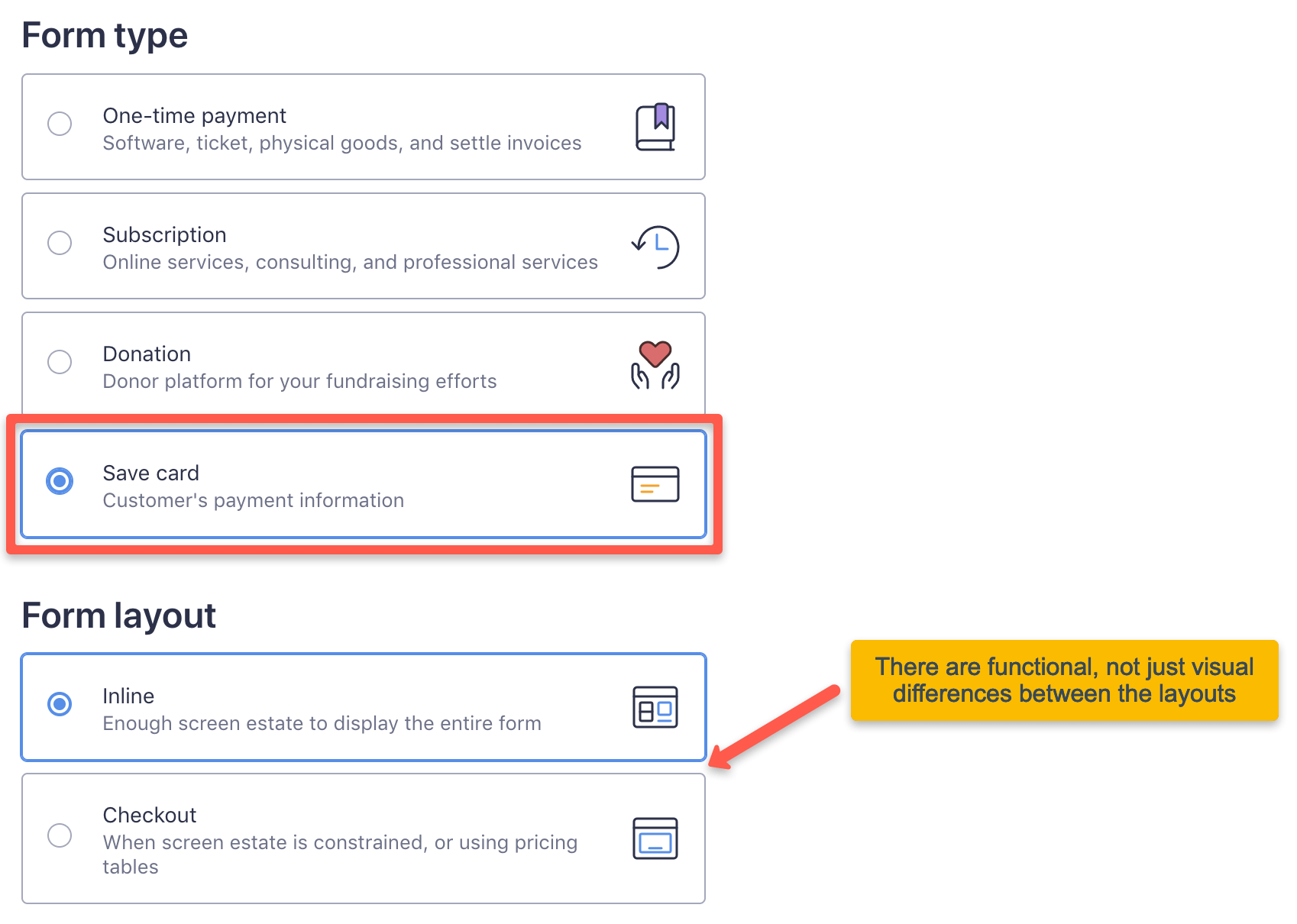 The current official save-card guide shows the Save card form type and both layout choices.
In the form editor, review the confirmation or redirect behavior, customer fields, appearance, and email notification. Add the consent wording and required checkbox that match the intended future use. Collect only the customer information you genuinely need.
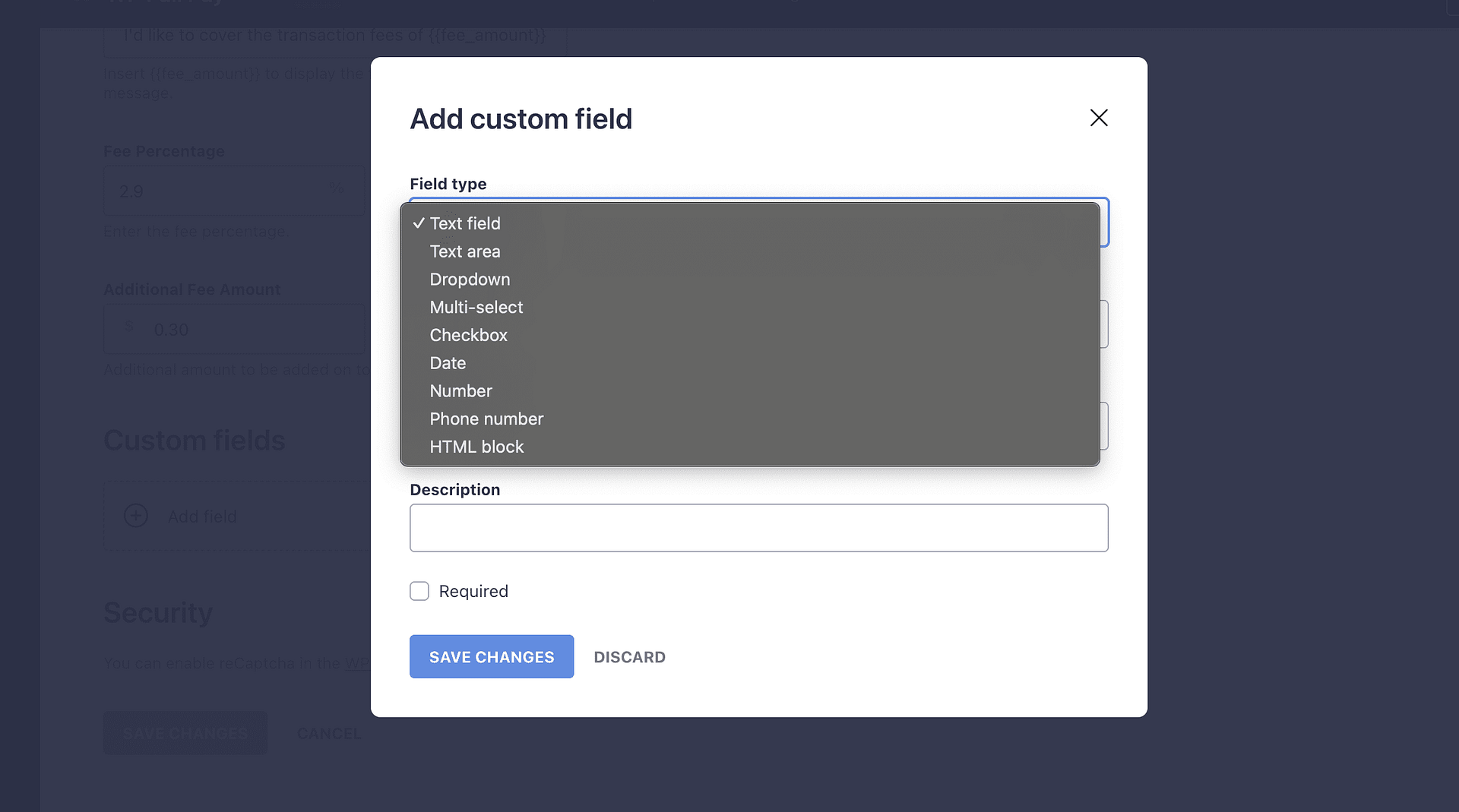 A required Checkbox custom field can record the consent choice; verify the resulting Stripe Customer metadata in Test mode.
4. Add the form to a page
Save the form, copy its generated shortcode from the Payment Forms screen, and add it to the intended page with a Shortcode block. WP Full Pay also supports its Gutenberg block, so use the insertion method that fits the page editor and test the published front end.
5. Test the complete setup
- Submit the public form with a Stripe test card.
- Confirm that the success message, redirect, and card-saved email are correct.
- Open the Stripe Dashboard and confirm that the expected Customer and payment method exist.
- Confirm that the consent record contains the expected value and can be connected to the correct customer.
- Exercise the later-charge or invoice workflow in test mode, including a case that needs customer action.
Only switch the Stripe connection to Live mode after the full test passes. Recheck the page on mobile, make the terms and privacy links easy to find, and monitor the first live submissions.
How to charge a saved card later
The save-card form does not include a built-in engine that reads usage from another system and automatically calculates or creates later charges. For a manual workflow, you can use the stored Stripe customer for an agreed follow-up invoice or deposit balance. For a custom usage-based workflow, code outside the form must calculate the amount and create the off-session PaymentIntent.
The current integration guide describes capturing the Stripe Customer ID, tracking usage in your own system, and creating the later payment through Stripe. That work needs careful error handling, idempotency, audit records, and a customer-action path when authentication is required.
Before each charge: Confirm that it fits the agreement, calculate the amount from reliable data, notify the customer where required or appropriate, and never treat the existence of a saved method as unlimited authorization.
Use a save-card form when the card should be stored without an immediate charge and the later amount or timing depends on an agreed event. Examples include a variable final balance, usage that is calculated elsewhere, or a manual invoice after work is complete.
Use a subscription form when the customer is signing up for a defined recurring plan with an established price and billing cadence. Stripe Billing then manages the recurring schedule. The separate guide to accepting recurring payments in WordPress covers that workflow.
Keeping these flows separate makes the promise clearer. A save-card submission should not quietly turn into a subscription, and a subscription should not rely on a manual saved-card process to imitate scheduled billing.
Save-card launch checklist
- The page explains why the payment method is being saved.
- The customer gives affirmative consent to the specific future use.
- The agreement states timing, frequency, and how the amount is determined.
- Raw card details are handled by Stripe, not stored in WordPress.
- The consent evidence and Stripe customer mapping are verifiable.
- Test mode covers setup success, authentication, decline, and recovery paths.
- The team has a process for updates, disputes, withdrawal of permission, and failed future payments.
A well-designed save-card flow makes a later payment easier without hiding the customer’s choice. Clear terms, Stripe’s setup controls, and a tested recovery path are what turn that convenience into a responsible payment process.