Recurring billing can make a service easier to renew, but the payment itself is only one part of the model. You also need a clear offer, a billing interval, a way to test the customer journey, and a controlled path for updates or cancellations.
This guide explains how to accept recurring payments in WordPress with Stripe and WP Full Pay. It starts with the Stripe Product and Price, then moves through the subscription form, embedding, test mode, and customer portal. It also separates ongoing subscriptions from fixed installment plans, because the two models create different customer and accounting expectations.
WP Full Pay is the product covered by this site, so it is the WordPress implementation used in the steps below. Its current documentation supports subscription forms with Stripe Products and Prices, plan selectors, trials, setup fees, coupons, and customer portal controls. Availability and customer-facing methods still depend on the connected Stripe account and the form configuration.
📖 This article owns the recurring-payment setup path. Use the separate failed recurring payments guide for retry, dunning, and recovery decisions after a renewal fails.
Choose the recurring model first
Recurring payments are charges scheduled at an interval after the customer agrees to the billing arrangement. A subscription usually means the customer continues until they cancel or the business ends it. An installment plan is different: it is a defined number of payments for a finite obligation.
| Model | Use it for | Important decision |
|---|
| Ongoing subscription | Continuing access to software, services, content, or a membership benefit. | Define renewal frequency, cancellation timing, and what access means after a failed renewal. |
| Fixed installments | A finite course, project, or agreed payment schedule. | State the number of payments and the end date or completion condition. |
| One-time payment | A single product, service, donation, or invoice. | Do not present a one-time charge as a recurring commitment. |
A recurring charge does not automatically make a business a membership business. A service retainer, replenishment plan, software license, and recurring donation can use recurring billing without offering a private member area. If access to protected content is part of the offer, treat WP Full Members as a separate add-on decision rather than implying that every subscription form includes content protection.
Create the Stripe Product and Price
Stripe separates what you sell from how it is billed. The Product describes the offer. The Price supplies the amount, currency, and recurring interval that a subscription uses. The current Stripe Products and Prices documentation explains the model. Create or confirm both objects before you build the WordPress form.
Give the Product a customer-friendly name and description, then create a recurring Price that matches the promise on your page. Decide whether the interval is weekly, monthly, yearly, or another interval supported by the configured Stripe flow. Check the currency, amount, tax treatment, and whether the Price is active before selecting it in WP Full Pay.
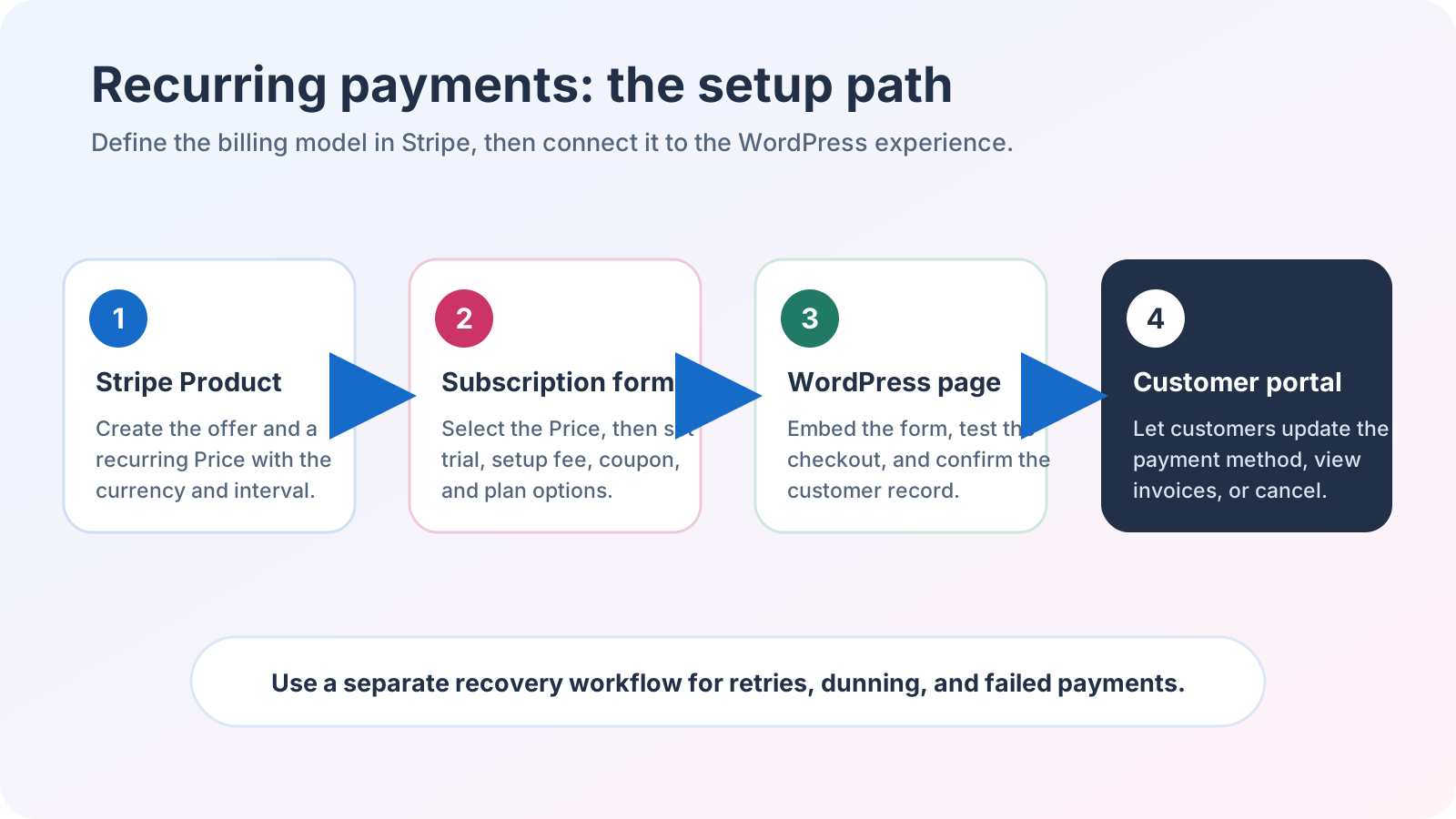 The setup begins with a Stripe Product and recurring Price, then moves through the form, WordPress page, and customer portal.
Plan the billing terms before publishing the offer. A trial changes when the first invoice is due. A setup fee changes the first charge without changing the recurring Price. Coupons can affect the amount or duration of a promotion. Explain those differences beside the plan selector so the first charge and later renewals are not a surprise.
Install WP Full Pay, connect the intended Stripe account, and keep the connection in test mode while the form is being built. Current WP Full Pay setup normally uses the connected account flow instead of asking you to paste API keys for ordinary plugin use. Direct keys remain a documented path for specific custom-code or add-on cases, so follow the connection method that matches the workflow.
In WordPress, go to Full Pay → Forms and start a new form. Choose the subscription form type, then select the Stripe Product and recurring Price. The current WP Full Pay subscription-form guide documents the product and plan configuration. If customers can choose among plans, enable the plan selector and give each option a plain-language label that includes the amount and interval.
- Product and Price: select the active recurring Price that matches the offer described on the page.
- Frequency: make the interval visible in the plan label and confirmation copy.
- Trial: state the trial length, what is collected at signup, and when the first recurring charge is due.
- Setup fee: explain that this is an additional initial amount, not a change to every renewal.
- Coupons: verify the eligibility and duration of each promotion before advertising the discounted total.
- Customer details: collect only the information needed for the order, support, tax, and fulfillment workflow.
Choose the form layout deliberately. An Inline form keeps the fields on the WordPress page, but current documentation warns that an Inline payment can appear as a Guest instead of being associated with a Stripe Customer. A Checkout form sends the customer to a Stripe-hosted page. If the workflow depends on a customer portal, subscription management, or customer-linked receipts, choose Checkout and verify the Customer record. Use Inline only when its page context matters more and the Guest limitation does not break the workflow. The current WP Full Pay layout documentation explains this boundary.
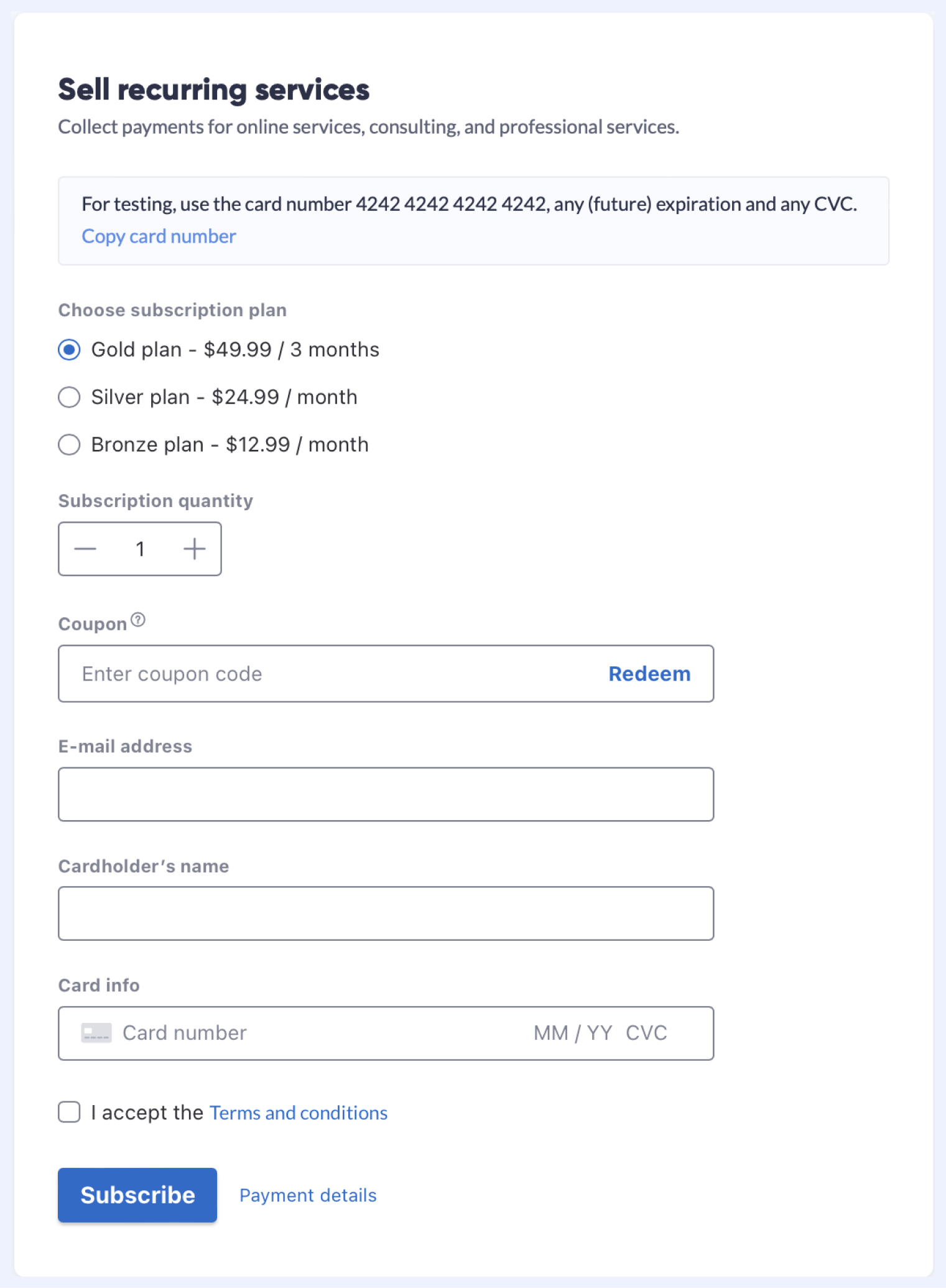 A subscription form can present plan choices, a coupon field, customer details, and payment fields in one flow.
Save the form, add it to the intended page with the WP Full Pay block or shortcode, and read the page as a customer. The surrounding copy should state the amount, interval, trial, setup fee, cancellation terms, and what happens after payment. A button that says only “Subscribe” leaves too many billing details unstated.
- Confirm the form shows the expected Product, Price, plan options, interval, and first-charge explanation.
- Run a successful test transaction with Stripe test data and confirm the subscription, invoice, customer, email, and WordPress transaction record.
- Verify the webhook status under Full Pay → Settings → Stripe account. Stripe Connect configures webhooks automatically, while a manual connection needs a test endpoint and a separate live endpoint. Use the official webhook setup guide to send a test event and confirm that WP Full Pay receives it.
- Test a declined payment, an abandoned form, a trial, a coupon, and any setup fee or custom interval used by the offer.
- Check the page on mobile and desktop, including validation messages, loading state, return behavior, and the visibility of the recurring terms.
- If the portal is part of the offer, open it as a test customer and verify the intended actions. Confirm that the subscription is attached to a Stripe Customer; if an Inline test appears as Guest, switch the form to Checkout before launch.
Do not switch to live mode until the test results match the intended billing policy. Test and live objects are separate. Connect Live mode, copy or recreate the Product and recurring Price in Live, then duplicate the tested form so the Live copy references the live objects and pricing. Embed the Live copy’s shortcode, verify its live webhook status, and replace the test form on the destination page. Recheck every live plan and make one controlled live transaction if the business process permits it.
Give subscribers a customer portal
Recurring billing needs a customer-facing management path. The portal can expose subscription and invoice controls, payment-method updates, and cancellation according to the options enabled for the account and form. Decide whether cancellation happens immediately or at the end of the current period, then make that policy visible before signup.
WP Full Pay documents both a built-in WordPress portal page and a Stripe-hosted Customer Portal path. The built-in page can use [fullstripe_customer_portal] for one-time email-code authentication or [fullstripe_customer_portal authentication="Wordpress"] for WordPress authentication. The current customer portal setup guide also calls out caching and authentication checks that need to be tested.
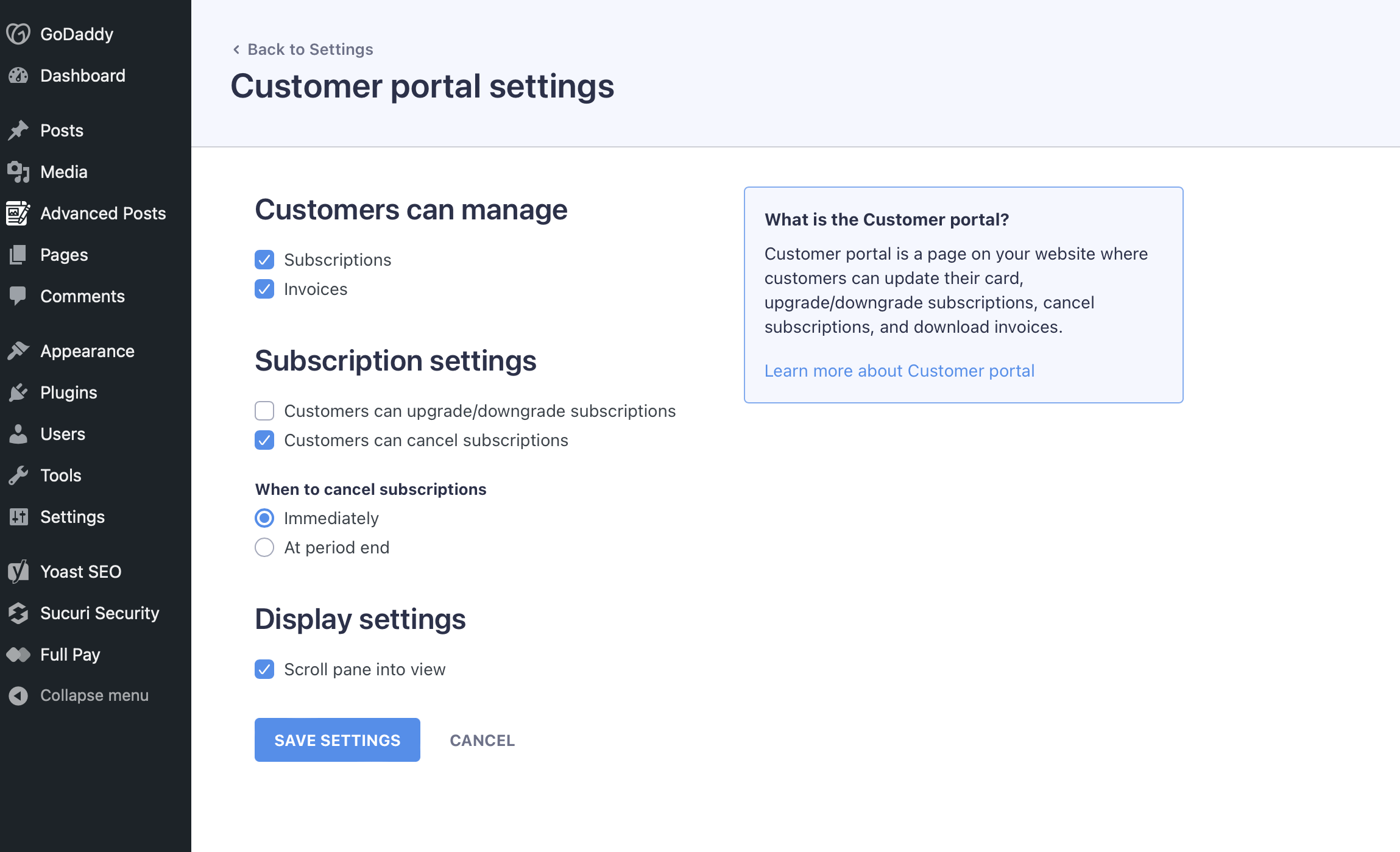 Current customer portal settings separate available customer actions from the cancellation timing choice.
Open Full Pay → Settings → Customer Portal, choose the controls that fit the support policy, and test the portal with a real test customer. Verify login, invoice visibility, payment-method updates, cancellation, and the return path. Exclude a built-in portal page from caching when the documentation requires it. A portal is a control surface, not a guarantee that every customer will recover a failed renewal.
Keep installments separate from subscriptions
An installment arrangement has a known number of scheduled payments. A subscription continues until cancellation or another configured end state. Do not describe an installment plan as unlimited access, and do not tell customers that any future balance will be charged automatically unless the exact Stripe and WP Full Pay flow has been configured and tested for that purpose.
For a finite plan, state the payment count, due dates or interval, total commitment, and what happens when the final payment succeeds or fails. WP Full Pay uses Stripe webhook events to track and end an End subscription after plan because Stripe does not model a number of charges directly. Do not launch an installment plan until the matching test and live webhook endpoints receive events successfully. For an ongoing subscription, state the renewal interval, cancellation rule, trial terms, setup fee, and customer-portal route. The same WordPress page can explain either model, but the labels and checkout expectations must not blur them.
Hand failed renewals to the recovery workflow
A successful subscription setup still needs an operational plan for failed renewals. Stripe controls the retry and failed-payment email settings. WP Full Pay can provide the customer-facing portal path, while the business decides access, support, and cancellation policy.
When a renewal fails, record the invoice state, identify whether a new payment method or customer action is needed, and use the dedicated failed recurring payments guide for the recovery sequence. Keep recovery instructions separate from the initial setup guide so readers do not mistake a retry policy for a subscription-form setting.
✅ Ready to define the billing object? Read the companion guide to Stripe Products and Prices before selecting the recurring Price in WP Full Pay.
Recurring payments WordPress checklist
- The Stripe Product, recurring Price, currency, interval, trial, and setup fee match the offer.
- The WP Full Pay subscription form uses the intended layout and plan selector.
- The page explains first and future charges, cancellation, and the customer-portal route.
- Successful, failed, abandoned, trial, coupon, and mobile test journeys have been recorded.
- The webhook status is healthy in the active mode, and installment ending behavior has been verified with delivered events.
- The live form is a verified duplicate that references live Products and Prices, not test objects.
- Installments are labeled as finite payments, not as an ongoing subscription.
- Failed renewals have a separate recovery and support workflow.