A sudden wave of tiny, failed payments can be more than a checkout glitch. It can signal a card testing attack, where automated traffic submits stolen or generated card details to find combinations that still work.
Fast containment matters, but no single setting can stop every attack. A safer response combines a less exposed payment flow, bot checks, fraud controls, targeted rate limits, and close monitoring. This guide explains what each layer does and how to respond without blocking every legitimate customer.
WP Full Pay is the product covered on this site, so it supplies the practical WordPress example. The same principle applies to any Stripe integration: contain the targeted endpoint first, then tune controls with evidence from the incident.
Table of contents:
What are card testing attacks?
Card testing, also called carding, is an attempt to learn whether stolen or generated card details are valid. Attackers often automate payment or card-saving requests, test many combinations, and keep the cards that return useful issuer responses.
Small payments are common because they can attract less attention, but an attack does not have to use a low amount. Card setup flows and saved-card endpoints can also be targeted. This is why a minimum amount is friction, not a complete defense.
Even mostly failed attempts can cause damage. They can raise decline rates, generate fees under some account arrangements, strain infrastructure, distort reporting, and make valid payments look riskier to issuers. Successful test charges can lead to refunds, early fraud warnings, or disputes.
How to recognize card testing in Stripe
A single decline is normal. Card testing looks like a pattern that differs sharply from ordinary traffic. Check the Stripe Dashboard, payment details, and failed request logs for several signals appearing together:
- A sudden increase in failed, blocked, or incomplete payments.
- Many payment attempts in a short period, often across different card numbers.
- Repeated small or identical amounts that do not match normal customer behavior.
- Implausible names, email addresses, or other customer details.
- A spike in card errors or HTTP 402 responses in Stripe request logs.
- Successful payments followed by early fraud warnings or unauthorized-payment reports.
With an inline WP Full Pay form, Stripe can create a PaymentIntent when a visitor or bot starts submitting the form. WP Full Pay records a WordPress transaction only after successful completion. Stripe can therefore show many more failed or incomplete attempts than the WordPress transaction list. That difference does not prove a synchronization problem.
Important: Preserve the incident time range, affected form URL, PaymentIntent identifiers, request patterns, and screenshots before changing controls. Do not copy card details into tickets or internal notes.
How to contain an active card testing attack
If suspicious attempts are still arriving, reduce exposure before spending time on perfect rules. The goal is to stop the targeted flow while keeping an evidence trail and avoiding broad changes that create a second outage.
- Identify the affected flow. Confirm which form, page, or save-card endpoint the attempts use. Check whether other payment forms still show normal traffic.
- Temporarily remove the affected inline form from public access. Remove its shortcode or replace that form area with a maintenance message. Avoid disabling the whole site when the evidence points to one form.
- Preserve evidence. Record the start time, volumes, amounts, Stripe object IDs, response patterns, and changes made. Keep logs long enough to compare the attack period with recovery.
- Review successful suspicious payments. Use Stripe’s official refund process for payments confirmed as unauthorized. Do not bulk-refund transactions only because they share a low amount.
- Deploy a protected replacement. For WP Full Pay, create and test a Checkout-layout form, enable reCAPTCHA v2 as an additional layer, and replace the affected shortcode only after the new flow passes testing.
- Escalate account restrictions through Stripe Support. If Stripe limits or suspends the account, provide the incident window, evidence, containment action, and affected integration without exposing credentials.
Stripe’s current card testing guidance also warns against repeated retries on cards or customers created during an attack. Automated retry behavior should be reviewed so fraudulent objects do not reproduce the original traffic.
Use Stripe Checkout to reduce form exposure
The current WP Full Pay card testing guide recommends moving an affected inline form to the Checkout layout during active abuse. The customer starts on the WordPress page and completes payment in Stripe’s hosted Checkout flow.
Stripe says its current Checkout and Payment Element integrations include automated controls such as rate limiters, risk models, CAPTCHA triggers, and ongoing review. These controls can reduce exposure, but their effectiveness depends on the integration and risk information available to Stripe. Checkout is a stronger starting point, not an immunity guarantee.
- Open Full Pay → Payment Forms and select Add form.
- Create the same payment or donation purpose with the Checkout layout.
- Match the amount, currency, frequency, customer fields, and confirmation behavior to the original offer.
- Test successful, declined, and authentication-required scenarios in Stripe test mode.
- Replace the affected shortcode and confirm that the live page opens the intended Stripe-hosted flow.
📖 Compare the customer experience and security boundaries in the guide to hosted and on-site Stripe checkout forms.
Enable reCAPTCHA v2 in WP Full Pay
WP Full Pay supports Google reCAPTCHA v2, including the checkbox and invisible-badge variants. It does not support reCAPTCHA v3 or Enterprise keys. Register the domain for the correct v2 key type, then keep the secret key out of screenshots, page markup, chat messages, and support tickets.
In WordPress, open Full Pay → Settings → Security.
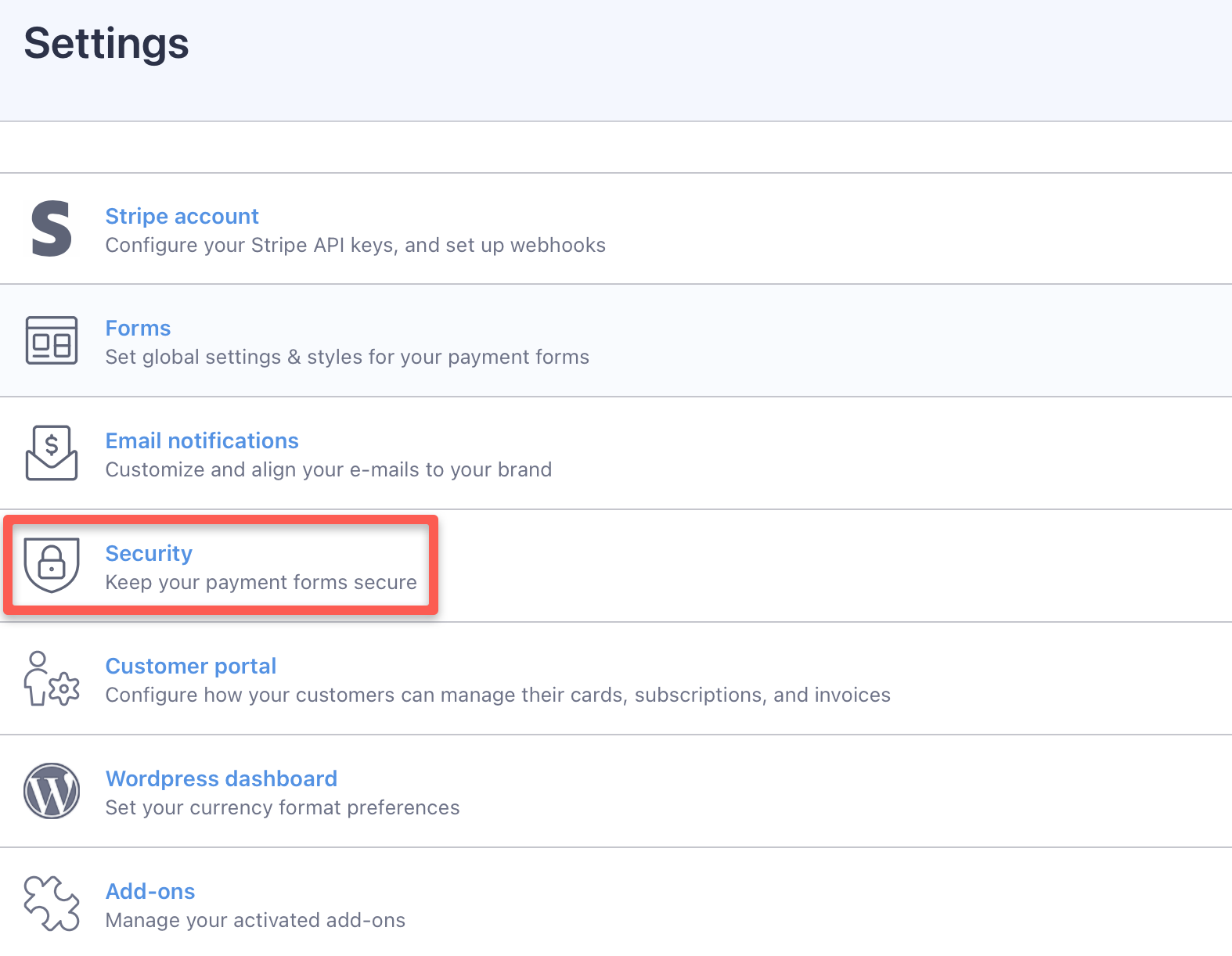 Open the global Security section in WP Full Pay settings.
Select the areas that need protection, paste the matching v2 site and secret keys, and save the settings. Protect the targeted form type first, then confirm the challenge and submission work in a private browser window.
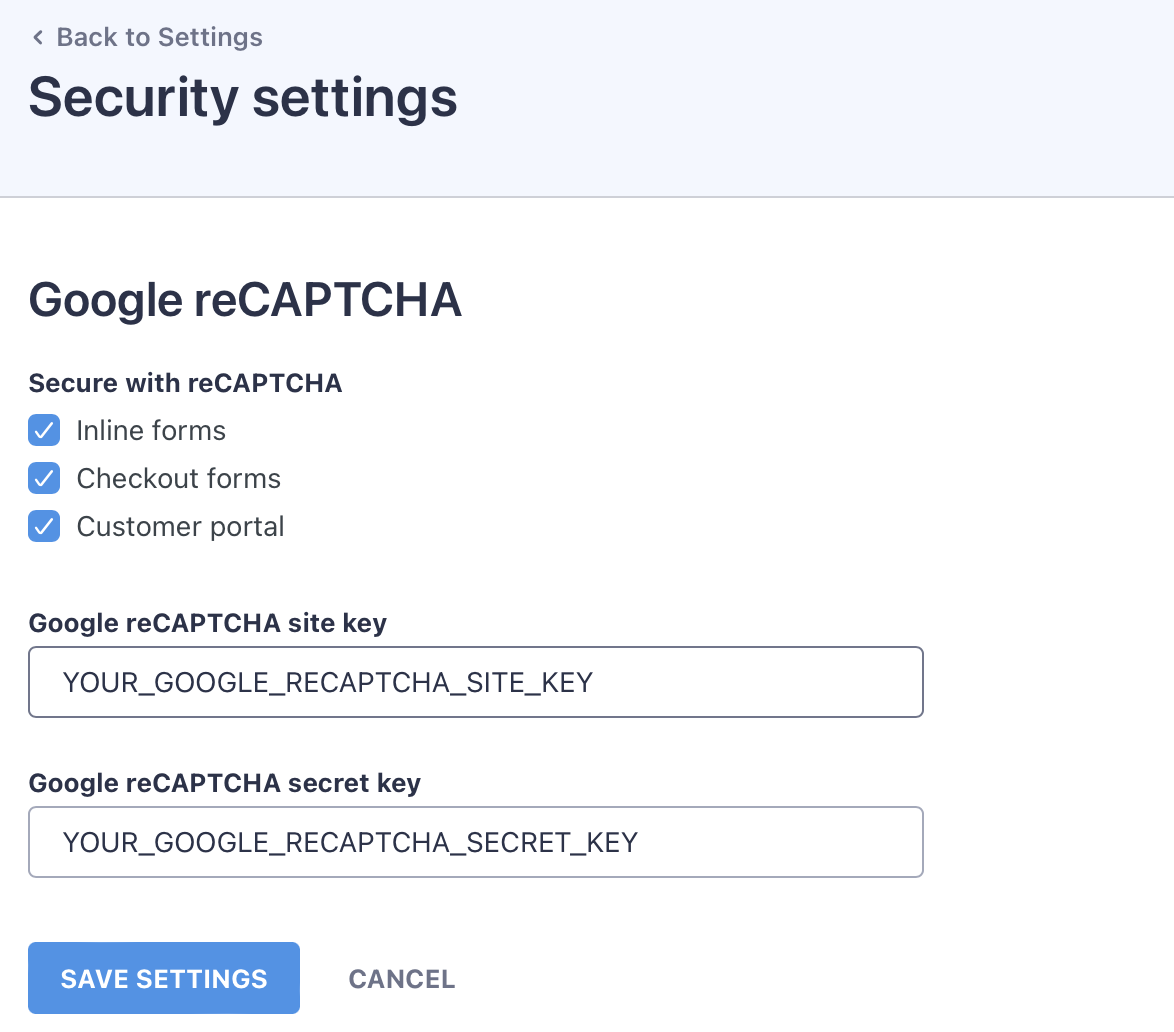 WP Full Pay can apply reCAPTCHA to inline forms, Checkout forms, and the customer portal.
The official WP Full Pay security settings reference confirms that reCAPTCHA is configured globally. It can reduce automated submissions, but sophisticated bots can bypass challenges. Do not leave an actively targeted inline form online merely because reCAPTCHA has been enabled.
Use Stripe Radar and targeted rate limits
Radar and application rate limiting solve related but different problems. Radar evaluates payments with Stripe’s network signals and account rules. Rate limiting controls how frequently a client, session, account, or other identifier can reach a sensitive form or endpoint.
Stripe separates its card testing controls from Radar’s protection against fraudulent disputes, although both benefit from shared risk signals. Start by reviewing why Stripe blocked or allowed the incident payments. Then decide whether account-specific Radar changes are justified.
- Radar: Review existing rules, payment outcomes, CVC and address signals, and normal customer geography before changing blocks. Custom velocity rules depend on the Stripe plan.
- Application or edge rate limits: Ask the developer, host, or security provider to limit the specific payment or save-card path being abused. Enforce important checks server side, not only in browser JavaScript.
- Session and account controls: Limit unusual creation or attachment behavior when the business model permits it. A login requirement can reduce exposure, but unnecessary registration can also block legitimate donors or buyers.
- Amount floors: Set a sensible minimum for customer-entered payment or donation amounts when that matches the offer. Do not treat the minimum as fraud detection because an attacker can change the amount.
Avoid copying a generic rule set into a live account. Distributed bots can rotate IP addresses, and a country-only block can reject good customers. Stripe’s Radar rules documentation should be paired with the merchant’s own baseline, plan features, and false-positive review.
Monitor the recovery and clean up safely
Keep monitoring after the visible spike stops. Compare the same Stripe views used during detection and record the results after each control change. Useful measures include failed and blocked attempts, incomplete PaymentIntents, success rate, affected form traffic, refunds, disputes, and legitimate customer support reports.
- Watch the first hours closely, then compare full-day patterns with the site’s normal baseline.
- Confirm that legitimate test scenarios and a controlled live payment still reach the expected confirmation and receipt flow.
- Review false positives before tightening another rule. A lower attack count with a sudden rise in customer failures is not a clean recovery.
- Remove fraudulent test customers or saved methods from retry workflows only after preserving required evidence and confirming the affected objects.
- Document the final controls, owners, alert thresholds, and rollback decision so the next response is faster.
If a secret API key may have been exposed, follow Stripe’s key-rotation process and update every authorized server-side integration. A publishable key is designed to appear in client-side code and is not a substitute for the secret key. The Stripe API key guide explains the distinction and safe rotation sequence.
Card testing attack questions
Can reCAPTCHA stop card testing by itself?
No. reCAPTCHA v2 can make automated submissions harder, but it does not stop every bot or manual attempt. Use it with a less exposed payment flow, Stripe controls, targeted rate limits, and monitoring.
Not automatically. The current WP Full Pay guidance recommends Checkout for a form under active card testing attack because more of the flow stays on Stripe’s hosted page. A business can still weigh layout, required fields, customer experience, and measured risk for forms that are not under attack.
Why does Stripe show more attempts than WordPress?
An inline submission can create a PaymentIntent before payment completes. WP Full Pay saves a transaction in WordPress only after successful processing. Failed or incomplete attempts can therefore appear in Stripe without a matching WordPress transaction.
What is the best Radar rule for card testing?
There is no universal rule or threshold. A useful rule reflects the attack pattern and the merchant’s normal traffic while limiting false positives. Custom velocity rules are also plan dependent. Review outcomes and test changes before increasing enforcement.
Card testing response checklist
- Confirm the affected form or endpoint and preserve incident evidence.
- Remove the targeted inline form from public access while the attack is active.
- Create and test a WP Full Pay Checkout replacement where appropriate.
- Enable compatible reCAPTCHA v2 protection without exposing the secret key.
- Review Radar decisions and add only evidence-based, plan-supported rules.
- Apply targeted server-side rate limits with the developer or hosting provider.
- Review suspicious successful payments individually and stop unsafe retries.
- Monitor attack volume and legitimate success after every change.
Card testing defense is an operating process, not a one-time switch. A contained form, layered controls, and a measured recovery offer a stronger result than any promise of complete prevention.