Apple Pay and Google Pay can remove card-entry steps from a WordPress checkout, but adding the logos to a form does not guarantee that every visitor will see them. Stripe evaluates the account, currency, payment type, customer location, device, browser, and checkout integration before showing an eligible wallet.
This guide shows how to accept Apple Pay and Google Pay in WordPress with Stripe and WP Full Pay. It focuses on the implementation path, the checks that control wallet visibility, and the tests that should pass before switching a form to live mode.
For the broader list of Stripe methods and their country and currency rules, see the separate Stripe payment methods guide. Link by Stripe is another accelerated checkout option, but it is separate from Apple Pay and Google Pay. This article stays focused on the two wallets in a WordPress form.
How Apple Pay and Google Pay work in WordPress
Apple Pay and Google Pay are wallet payment methods. The customer confirms a payment with a wallet on a supported device instead of typing the full card number into the form. The wallet still uses an eligible underlying funding source, and Stripe still creates and confirms the payment according to the account and form configuration.
That distinction matters when troubleshooting. A wallet can be enabled in Stripe and still be hidden for a particular visitor. An Apple Pay button is not a promise that every browser, device, country, currency, or payment type can use it.
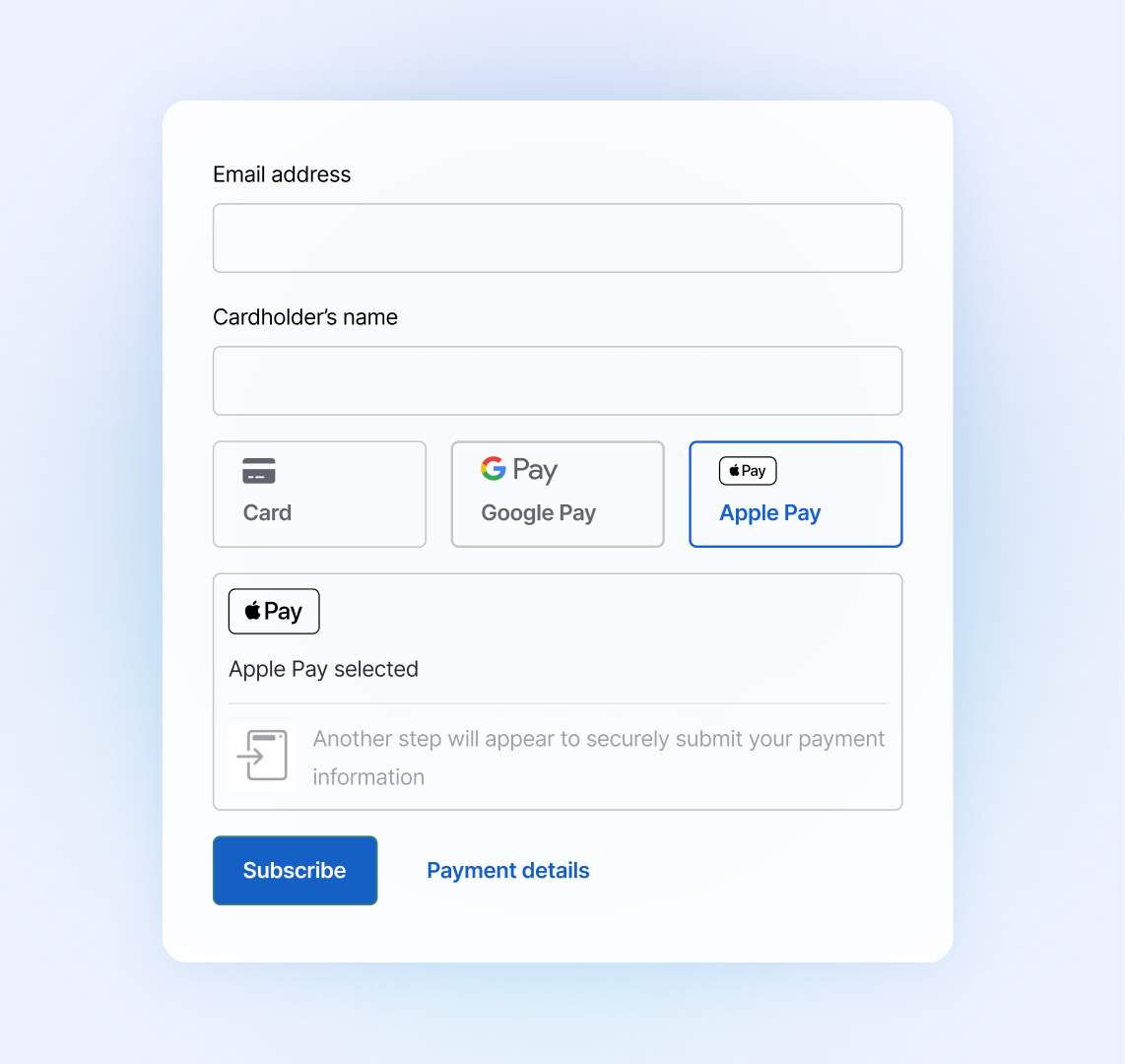 Wallet choices appear alongside card payment when the customer and transaction are eligible.
Before changing a live form, write down one test scenario: your Stripe account country, the currency and amount, whether the payment is one time or recurring, and the customer device and browser. Wallet availability is evaluated against that complete scenario, not against a global list of enabled methods.
Stripe account, country, currency, and payment type
- Use a Stripe account that is activated for payments in the business location where it operates.
- Confirm that the presentment currency and amount are supported for the wallet and account combination.
- Check whether the form is for a one-time payment or a recurring payment. Do not assume that a method available for one-time payments is available for subscriptions.
- Keep Stripe test and live modes separate. A method enabled in one mode must be checked again in the other.
Stripe controls the final eligibility decision. WP Full Pay documentation currently lists Apple Pay and Google Pay among its supported payment methods, but that product-level support does not override Stripe account, currency, location, or customer rules.
Customer device, browser, and wallet setup
For web payments, test Apple Pay in Safari on a supported Apple device with an eligible card in Wallet. Test Google Pay in a supported browser such as Chrome, Firefox, Safari, Edge, Opera, or UC Browser, with a payment method saved to the Google Account. The customer must also meet Stripe’s regional, account, and transaction requirements. A browser that cannot use the wallet should still receive another payment option.
Do not describe a wallet as universally available on every browser or device. A missing button is often an eligibility result rather than a broken form.
HTTPS and domain requirements
Serve the payment page over HTTPS with a valid certificate. For Apple Pay or Google Pay in Stripe Elements or Stripe Checkout‘s embeddable payment form, Stripe requires payment-method domain registration. Register every exact domain and subdomain separately for each environment, including the live environment and every sandbox. Cover the production host, test or staging hosts, and separate apex or www hostnames that serve the form, then confirm each registration is active in the matching Stripe environment.
Prepare WordPress and WP Full Pay
Install the current WP Full Pay release from the WordPress directory or the official product source. Before troubleshooting a wallet, make sure the WordPress environment meets the current minimum requirements:
- WordPress 5.3 or newer
- PHP 7.4.0 or newer
- MySQL 5.0 or newer
- PHP cURL, MBString, Filter, and JSON extensions
- HTTP GET, POST, and PUT requests allowed by the server
💡 Keep the scope clear: WP Full Pay is a standalone WordPress payment plugin. It can run alongside WooCommerce, but it is not a WooCommerce integration. For a non-WooCommerce form workflow, see the guide to selling products without WooCommerce.
Connect WP Full Pay to Stripe
- Open WP Full Pay → Settings in the WordPress dashboard.
- Use the Stripe connection control and follow the authorization flow for the intended account.
- Choose the test or live mode that matches the form scenario you are preparing.
- Return to the settings screen and confirm that the expected account and mode are connected.
Ordinary WP Full Pay connections do not require manually pasting Stripe API keys. Manual-key guidance belongs to documented exceptions such as custom code using the internal API or the WP Full Members add-on. If you need that path, use the dedicated Stripe API keys guide and keep secret keys out of page content and browser code.
Enable Apple Pay and Google Pay
Enable the wallets in Stripe
Open the Payment methods area of the Stripe Dashboard for the same account and mode connected to WP Full Pay. Find Apple Pay and Google Pay, review any account-specific requirements, and enable the methods when Stripe makes them available. Stripe may show a method as active, unavailable, or requiring more information.
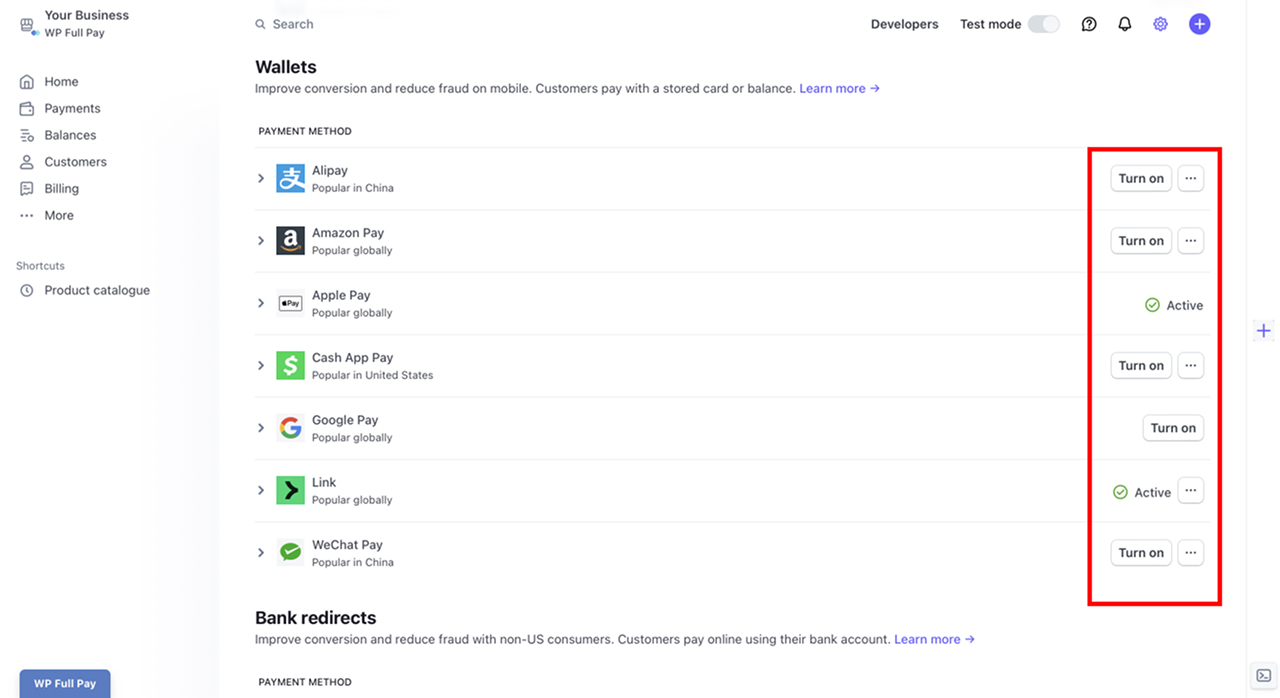 Stripe decides which wallet methods can be activated for the connected account.
- Open WP Full Pay → Payment Forms and create or edit the payment form.
- For a single purchase, choose an Inline Payment form when the form-level payment-method controls are needed.
- Open the form’s payment-method settings and select Apple Pay and Google Pay when those controls are available.
- Save the form, then insert it on a private test page with its block or shortcode.
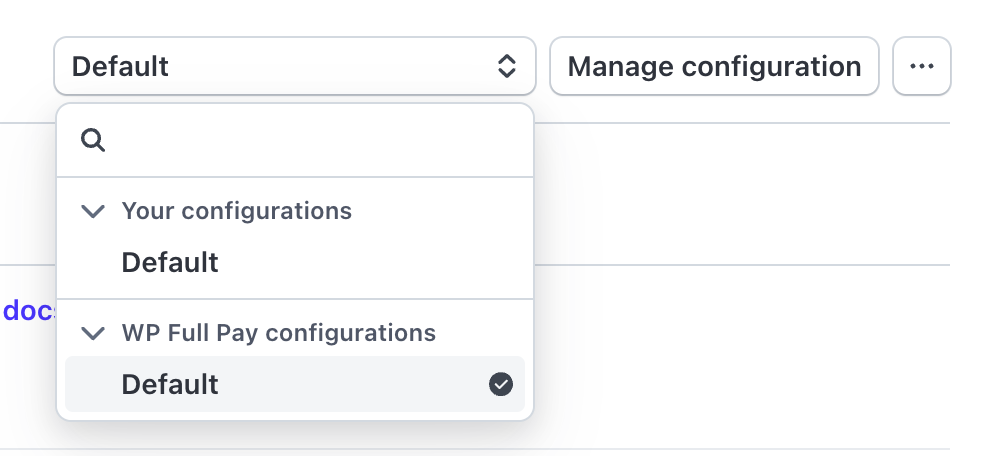 Use the intended WP Full Pay configuration when configuring payment methods.
Current WP Full Pay documentation says that selecting payment methods per form is available only for inline one-time payment forms. A Checkout form can still display Stripe-supported methods according to its own eligibility rules, but do not promise that the same form controls or wallet layout will appear in both layouts. The separate hosted versus on-site checkout comparison explains that architecture choice.
Test wallet payments before going live
Create a private test page and run the same form a customer will use. Test both the wallet path and the card fallback. A form that displays a wallet but cannot complete its confirmation step is not ready for launch.
- Load the page over HTTPS in Safari on a supported Apple device with an eligible card in Wallet for Apple Pay.
- Load it in a currently supported Google Pay browser with an eligible payment method saved to the Google Account.
- Confirm that the wallet button appears only when the wallet and transaction are eligible.
- Complete a Stripe test-mode payment and check the payment status in the connected test account.
- Verify the success message, customer receipt, administrator notification, and any redirect.
- Repeat the test with a card fallback and an intentionally declined test scenario.
Do not use real card details on a test page. Keep the test and live objects separate, then create or verify the live form configuration after switching the connected account to live mode.
Use a wallet-specific launch checklist
A wallet launch is more than a visible button. Check the surrounding experience so that a customer can complete a payment even when the wallet is unavailable. Review the form on a real phone and on a desktop viewport, because a responsive layout can expose different spacing, labels, and fallback behavior. Give the support team a short checklist that names the account mode, test URL, browser, and Stripe payment ID to inspect.
- Keep a fallback: show card payment or another eligible method when the customer does not have the required device, browser, wallet, or funding source.
- Check the amount: verify that the displayed currency and amount match the payment created in Stripe. Test customer-entered amounts separately from preset amounts.
- Check the confirmation: make sure the customer receives a clear success or failure message and that the administrator receives the expected notification. Do not use a browser redirect as the only record of payment.
- Check refunds: verify where a refund is initiated, how it is recorded, and what the customer sees. Wallet refunds still follow the underlying Stripe payment and method rules.
- Check accessibility: use a visible form label, a clear amount, a keyboard-friendly fallback, and text that does not rely on wallet logos alone. Test zoom and small screens.
- Check privacy: remove payment details from debug logs and analytics payloads. Measure form views, wallet display, payment success, and failure states without sending sensitive payment data to analytics.
📖 Next step: If the issue is a declined or incomplete recurring payment rather than wallet visibility, use the dedicated failed recurring payments guide.
Apple Pay or Google Pay is not listed in Stripe
- Check the account country, business verification, and payment capabilities.
- Check that the Dashboard is in the same test or live mode as WP Full Pay.
- Review the method’s currency, customer-location, and payment-type requirements.
- Read any Stripe action message instead of assuming that the method is supported for every account.
The wallet is enabled but not visible on the page
- Confirm that the page uses the form you edited and that the form was saved.
- Check the exact customer device, browser, wallet, funding source, country, currency, and amount.
- Remove cache layers or stale scripts while testing, then inspect the browser console for payment-element errors.
- Keep a card or another eligible method available so customers are not blocked when their wallet is unavailable.
The wallet opens but the payment fails
- Check the payment status and failure reason in the matching Stripe test or live account.
- Confirm that the amount, currency, product, and customer details are valid for the wallet.
- Check the form’s success and failure handling, notifications, and any redirect.
- Do not treat a browser success screen as proof of a final payment when Stripe reports a processing or failed status.
Move from test mode to live mode
Before launch, verify the live Stripe account, live mode, live form, live notifications, and live domain. Recheck the wallet methods after the mode switch because Stripe evaluates eligibility in the live account context. Publish the form only after the private-page tests pass on the devices and browsers that matter to your customers.
- Confirm the live Stripe connection in WP Full Pay.
- Confirm Apple Pay and Google Pay are enabled or available in the live Stripe Dashboard.
- Confirm the production URL uses HTTPS and every production domain or subdomain used by an Elements or embedded Checkout form is registered and active in Stripe’s live environment.
- Run a small real payment only if the business can safely authorize and refund it.
- Record the payment, notification, refund, and reconciliation results.
Apple Pay and Google Pay WordPress FAQ
Does WP Full Pay support Apple Pay and Google Pay?
Yes. Current WP Full Pay documentation lists both wallets among its supported payment methods. Stripe still decides whether either method is eligible for the particular account, currency, customer, device, browser, and form.
Check the Apple device, Safari version, Wallet card, account and currency eligibility, HTTPS, Stripe mode, form type, and the matching payment-method domain registration. Test with a supported Apple Pay setup instead of using a browser or device that cannot present the wallet.
Check the Google Pay setup, supported browser and device, account mode, currency, customer location, and form settings. Clear cached scripts and test the same page in a clean browser session. Keep a card fallback because a wallet can be unavailable for a particular visitor.
Can Apple Pay and Google Pay be used for subscriptions?
Do not assume that a wallet available on a one-time form is available for a recurring form. Confirm the current Stripe and WP Full Pay support for the exact subscription scenario, currency, account, and customer setup before advertising recurring wallet payments.
Do digital wallets replace card payments?
No. Wallets are additional payment methods backed by eligible funding sources. Keep a card option and review the complete payment status in Stripe, especially when a wallet is unavailable or a payment requires another customer action.